

Automate Data Sync from Excel/Sheets to PostgreSQL with n8n
Are you tired of manually transferring data between your spreadsheets and your PostgreSQL database? This comprehensive guide will walk you through setting up an automated data synchronization workflow using n8n, a powerful open-source workflow automation tool. Backrun helps businesses automate their backend — from lead generation to support, integrations, and operations — so you can focus on growth, not grunt work. This process eliminates errors, saves time, and ensures your database always reflects the latest information from your spreadsheets.
Understanding the Workflow
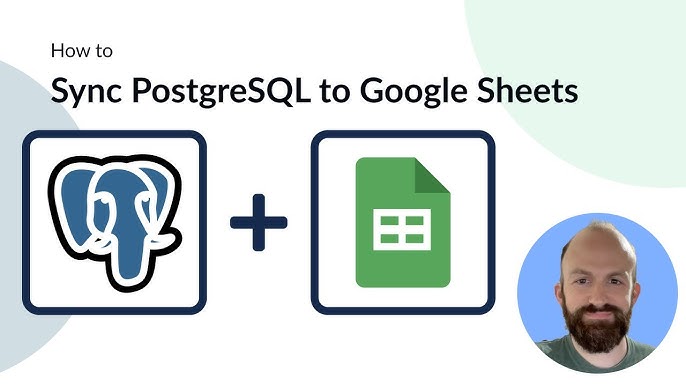
This workflow automates the process of moving data from an Excel or Google Sheet into a PostgreSQL database. It leverages n8n’s visual workflow builder to create a series of interconnected steps, ensuring a smooth and reliable data transfer. The key components of this automation are:
- Trigger options: You can initiate the sync in three ways – manually, on a scheduled basis, or triggered by events in other applications. Automations built with n8n can significantly streamline your data management.
- Get data from Excel: This node pulls data directly from your Excel or Google Sheet table. It reads rows from the specified table, making it the starting point of your synchronization process.
- Sanitize data: This crucial step cleans and transforms your data. For example, it can convert date formats from Excel’s serial numbers into proper date objects, ensuring data integrity in your PostgreSQL database.
- Upsert into Postgres: This node is the heart of the automation. It either inserts new rows into the database or updates existing rows based on a unique identifier. This ensures that your database always contains the most current data.
- Column Mapping: For auto-mapping to function correctly, column names in your Excel/Sheets and the database table must align. If names differ, you can manually map columns within the Postgres node.
- (Optional) Two-way Sync: The workflow can be extended to push database updates back to your Excel sheet, creating a dynamic and real-time synchronization between your spreadsheet and database. This can be particularly useful for data entry scenarios.
Setting Up Your n8n Workflow
Follow these steps to create your data synchronization workflow in n8n:
- Import the workflow JSON: You can find pre-built workflow JSONs online or create your own using the n8n interface. Import the JSON into your n8n instance.
- Connect your credentials: You’ll need to connect n8n to your Excel/Sheets and PostgreSQL services.
- Microsoft Excel / Google Sheets OAuth2: Configure OAuth2 authentication for access to your spreadsheets.
- Postgres database: Provide the necessary connection details (host, port, database name, username, password) for your PostgreSQL database.
- Point the Excel node: Specify the workbook, worksheet, and table within your Excel or Google Sheet from which you want to extract data.
- Match Column Names: Ensure column names in the Excel sheet and the PostgreSQL table are either identical or carefully map them using the column mapping feature within the Postgres node. n8n’s apps ecosystem offers many helpful integrations.
- Run Manually or Schedule: You can run the workflow manually for a one-time synchronization, or configure a schedule trigger for automated syncs (e.g., daily, hourly).
Prerequisites
Before you begin, ensure you have the following:
- An active n8n self-hosted or cloud account.
- Access to either Microsoft Excel Online or Google Sheets.
- A running PostgreSQL database (or you can adapt this workflow for MySQL, MariaDB, or other supported databases). We offer services to help with database migrations.
Customizing Your Workflow
The core workflow can be easily customized to meet your specific data synchronization needs:
- Swap Spreadsheet and Database: Replace the Excel node with a Google Sheets node, or replace the Postgres node with a node for your preferred database (MySQL, MariaDB, etc.).
- Add Validation Steps: Incorporate validation nodes to check for data quality issues, such as missing email addresses or duplicate IDs. This ensures that only clean data is inserted into your database.
- Reporting Workflows: Extend the workflow to sync data from your database to BI dashboards, providing valuable insights into your business performance. Microsoft 365 Copilot can assist with report generation.
- Spreadsheet Migration: Utilize this workflow as a foundational step to migrate data from complex spreadsheets into a structured database, improving data management and accessibility. We can help accelerate your migration project.
By automating your data synchronization, you can free up valuable time and resources, reduce errors, and gain a more accurate view of your business data. Contact us to learn more about how Backrun can help you streamline your operations.
Need help with data migration or automation strategies? Our team of experts can provide tailored solutions. hello@backrun.us