
Automating Lead Follow-Ups with Google Sheets and n8n
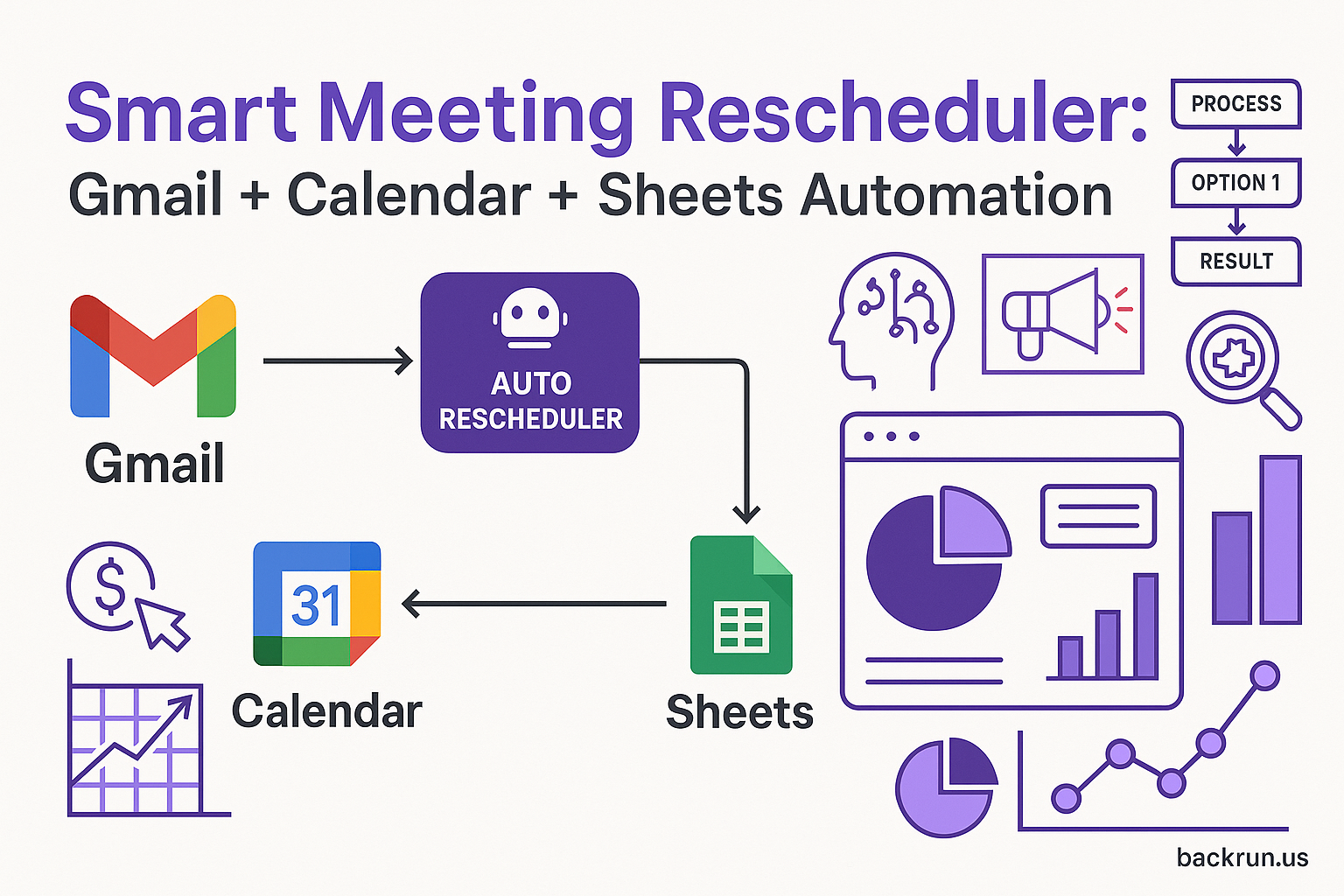
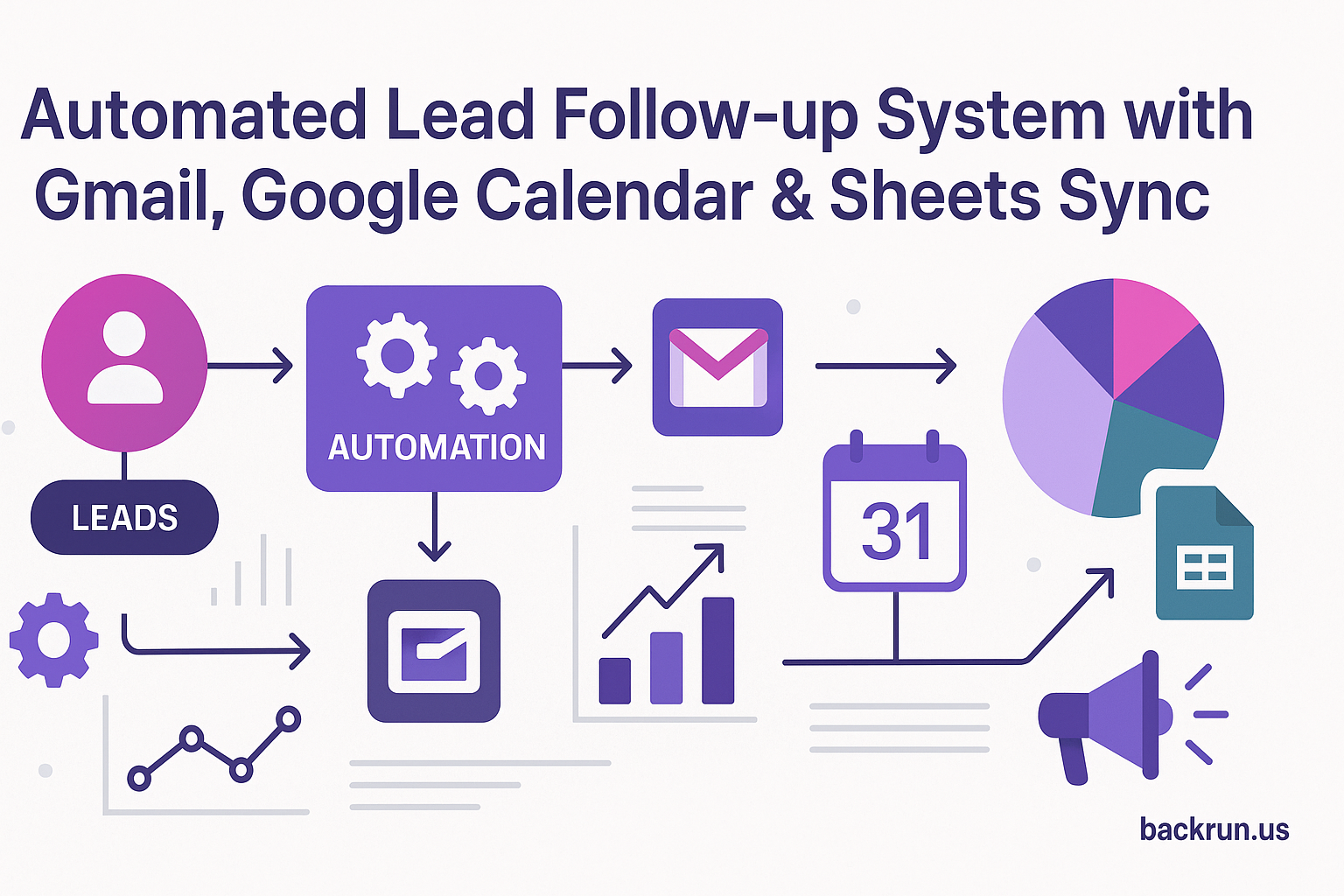
In the fast-paced world of sales, managing numerous leads can be overwhelming. Fortunately, automation tools like n8n can simplify the process. In this guide, we’ll walk you through how to set up an efficient lead follow-up system using Google Sheets, the Gmail API, and other essential tools to maximize conversions with minimal effort.
Google Sheets Integration
Your process begins with a simple spreadsheet containing lead details such as:
- Name
- Status
- Initial Reply Date
Use these details to centralize your lead management, ensuring that your sales team can easily track progress and maintain engagement.
Gmail API and Calendar API Credentials
Incorporate the Gmail API for sending follow-up emails and the Google Calendar API for creating placeholder events. This setup allows you to:
- Send tailored follow-up emails
- Schedule placeholder events for discovery calls
Ensure you have the necessary credentials from the Google Developer Console to utilize these APIs effectively.
Setting Up n8n Workflow
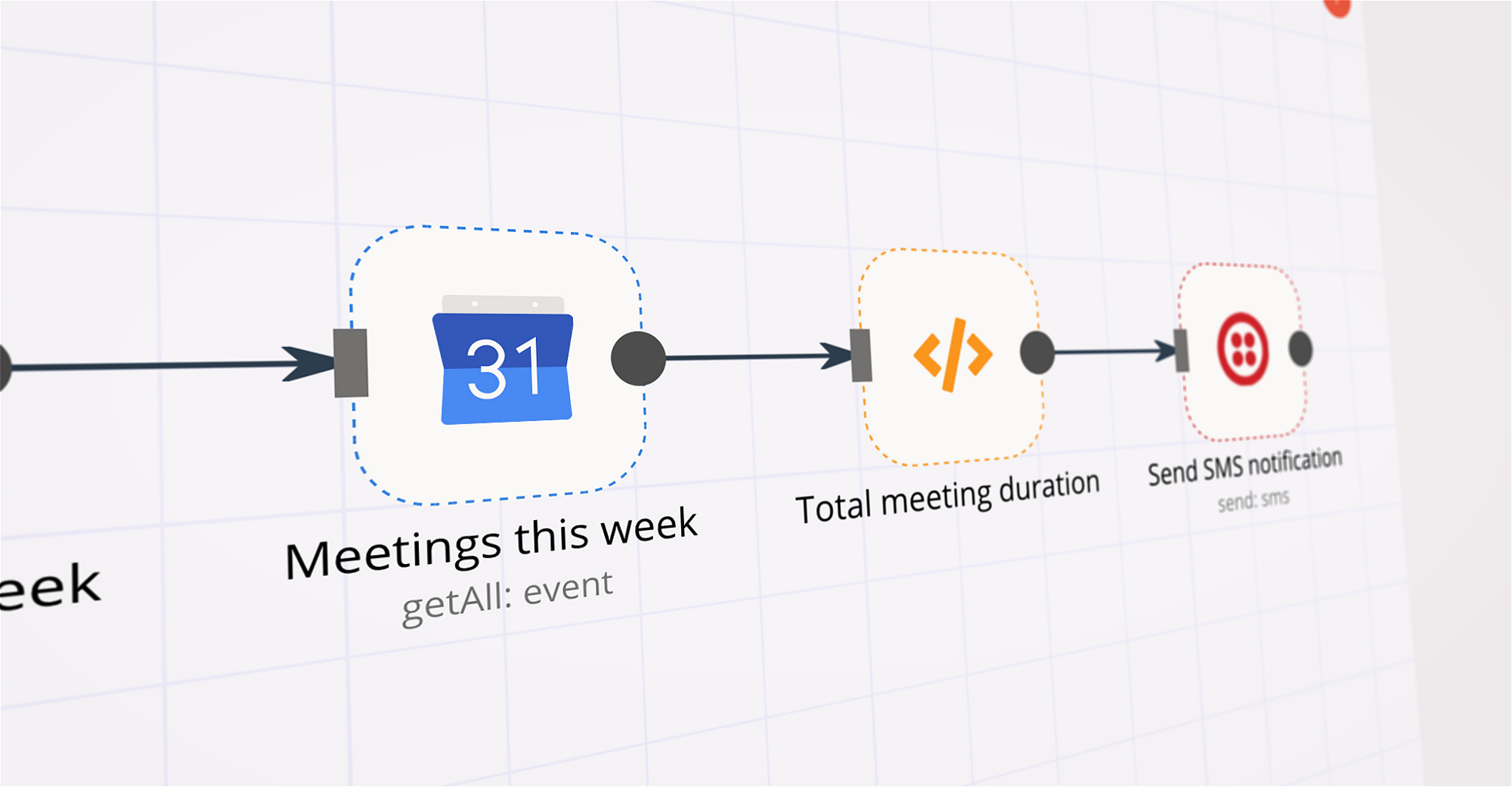
Once your APIs are ready, you can create a workflow in n8n. Follow these steps:
- Set a schedule trigger to run your workflow hourly.
- Fetch lead records from Google Sheets.
- Add an IF condition to filter leads with a status of “Unbooked” or leads that have gone unanswered for over 24 hours.
Sending Follow-Up Emails
When leads meet your criteria, it’s time to send follow-up emails. Craft your email to include:
- A booking link
- Two alternate time slots for scheduling
Consider using AI-generated personalized email copy to increase response rates. This adds a personal touch and can significantly boost engagement.
Creating Placeholder Events
Create a placeholder event in Google Calendar approximately 24 hours from the current time. This keeps your calendar organized and ensures that both you and the lead have a visual reminder of the upcoming call.
Managing Responses
Add a 24-hour delay node to your workflow to wait for responses. After this delay:
- Fetch Gmail threads to check for replies.
- If a lead confirms, update the Google Sheets status to “BOOKED.”
Alternative Email Providers
If your business prefers a different email system, you can easily replace Gmail with Outlook or Zoho Mail in your workflow. The overall automation process remains the same.
Alert Notifications
Integrate Slack or Telegram alerts for real-time notifications when a booking is confirmed. This ensures that your sales development representatives (SDRs) are always informed and can manage their follow-ups efficiently.
CRM Integration
For comprehensive lead management, connect your workflow to a CRM system like HubSpot, Zoho, or Salesforce. This enables full synchronization of lead data and streamlines your sales process. By doing so, sales teams can effectively manage high-volume leads without missing any follow-ups.
Conclusion
By automating your lead follow-up process using Google Sheets, the Gmail API, and n8n, businesses can ensure that they maximize conversions with minimal effort. This setup is ideal for:
- Sales teams managing high-volume leads
- SDRs ensuring follow-ups never get missed
- Agencies scheduling discovery/intro calls
To learn more about how to implement automation in your business, visit Backrun or contact us directly at hello@backrun.us.