


Automated Water Bill Calculation with Telegram and AI
Tired of manually tracking water meter readings and calculating bills? This blog post details how to create an automated system using Telegram, the Gemini AI API, and n8n to streamline your water billing process. Backrun helps businesses like yours automate tedious tasks, freeing up valuable time and resources. Explore our AI automation services to learn how we can help.
Prerequisites
Before we dive into the setup, you’ll need the following:
- A Telegram bot token (created via BotFather).
- A Google account with access to Google Sheets.
- A Gemini API key (obtainable from Google AI Studio).
- A pre-created Google Sheet with the required columns.
Connecting Google Sheets
The first step is to connect your Google Sheet to your n8n workflow. Here’s how:
- In n8n, navigate to “Integrations” and select “Google Sheets”.
- Click “Add New”.
- You’ll be prompted to “Add Google Sheets Credentials”. Click this button.
- Authorize n8n to access your Google Sheets account by granting the necessary permissions.
- Once authorized, you’ll see a field to enter your Google Sheets URL. Paste the URL of your pre-created Google Sheet.
Ensure your Google Sheet has the following columns (adjust column names as needed):
- Date (e.g., 2024-07-24)
- Meter Reading (e.g., 123456)
- Volume (calculated)
- Usage (calculated)
- Total Bill (calculated)
Setting Up Telegram Bot
Next, we’ll configure the Telegram bot to receive meter readings.
- Open Telegram and start a chat with BotFather.
- Use the `/newbot` command to create a new bot.
- Follow the instructions to choose a name and username for your bot.
- BotFather will provide you with a bot token. This is crucial for connecting your bot to n8n.
In your n8n workflow, add a “Telegram Trigger” node. Paste your bot token into the “Token” field of this node.
Configuring Gemini AI
Now, let’s integrate the Gemini AI API to extract the meter number from the image.
- Go to Google AI Studio and obtain a Gemini API key.
- In n8n, navigate to “Integrations” and select “Custom”.
- Click “Add New” and give your integration a name (e.g., “Gemini AI”).
- You’ll need to define the API endpoint and authentication method. Refer to the Gemini API documentation for details.
- Add your Gemini API key to the “API Key” field in your custom integration settings.
Building the Workflow Logic
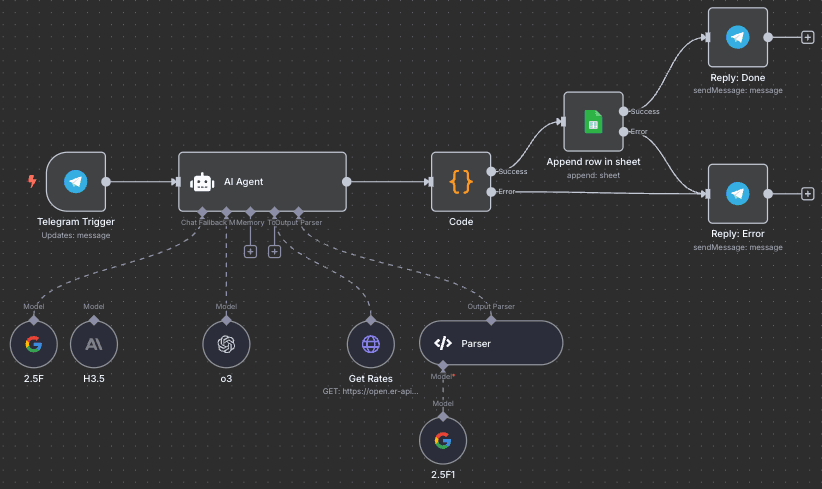
Here’s a breakdown of the workflow steps:
- **Telegram Trigger:** Receives a message containing a photo of the water meter and the user’s name (e.g., “John Doe”).
- **Gemini AI:** Processes the image and extracts the meter number from the photo. You can use the Gemini API’s vision capabilities for this. Read more about our AI capabilities.
- **Google Sheets:** Fetches the previous meter reading from the Google Sheet, matching the extracted meter number.
- **Calculation:** Calculates the volume used since the last reading.
- **Calculation:** Calculates the total bill based on the meter reading, price per cubic meter (Harga/m³), and any fixed fees (Beban).
Remember to change the Harga/m³ in the sheet to match your community’s water price and update Beban if your community uses a different fixed fee.
- **Google Sheets:** Stores the new meter reading, volume, usage, and total bill back into the Google Sheet.
- **Telegram Response:** Sends a detailed bill summary to the user in Telegram, including the current meter reading, volume used, usage in cubic meters, and the total bill. You can edit the Telegram reply message node to adjust the wording.
Customization and Maintenance
To ensure accurate billing, remember to:
- Change Harga/m³ in the sheet to reflect your community’s current water price.
- Update Beban if your community has a fixed monthly fee.
- Regularly monitor the workflow to ensure it’s functioning correctly.
- Consider using n8n’s error handling features to manage potential issues.
Potential Use Cases
This automated system can be beneficial for:
- Residential communities.
- Apartment complexes.
- Small businesses.
For more complex automation needs, consider leveraging Backrun’s managed services.
Need Help?
Having trouble setting up your automated water billing system? Contact us or email us at hello@backrun.us. We’re here to help you automate your backend and focus on what matters most – growth.
Change Harga/m³
Locate the column in your Google Sheet labeled “Harga/m³”. Update this value to the current price per cubic meter charged by your water provider or community.
Update Beban
If your community charges a fixed monthly fee (Beban) in addition to the water consumption, locate the “Beban” column in your Google Sheet and update it with the current fixed fee.
Edit Telegram Reply Message
In the Telegram Reply Message node of your n8n workflow, you can customize the message sent to the user. Adjust the wording to include your community’s name, specific instructions, or any other relevant information. You can use templating within n8n to personalize the message further.